 Hi-Scan Emulator
User Guide
The legendary Hi-Scan Pro diagnostic tool on your phone: the same menus, the same screens, a real vehicle connection.
Get it on Google PlayWhat is Hi-Scan Emulator?
Hi-Scan Pro is a professional diagnostic tool that dealer workshops used for years, above all for Hyundai and Kia. Hi-Scan Emulator recreates its processor, display and keypad on the phone, so the device’s original software (ROM) runs without any change.
That is why the menus, screens and functions are those of the real tool: reading and clearing fault codes, live data, actuator tests, adaptations and the other service functions of each make. The car is reached through an inexpensive, widely available OBD adapter instead of the tool’s own cable.
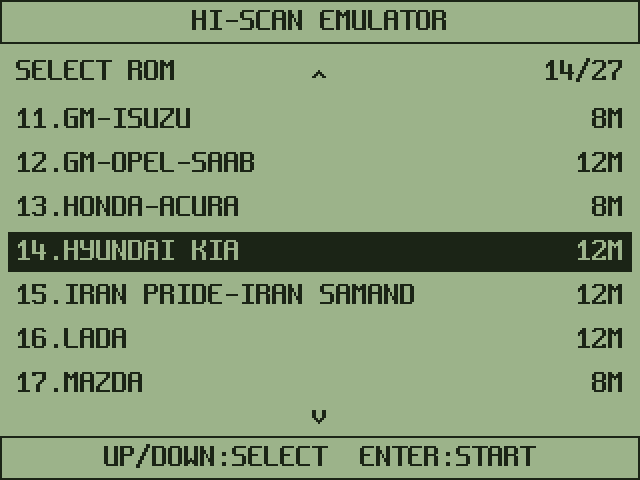
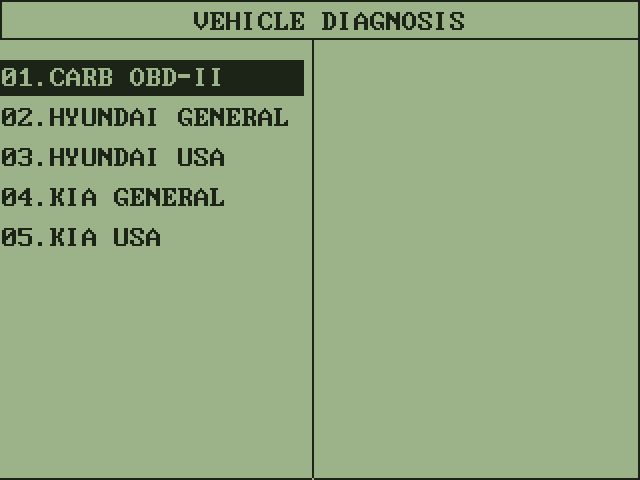
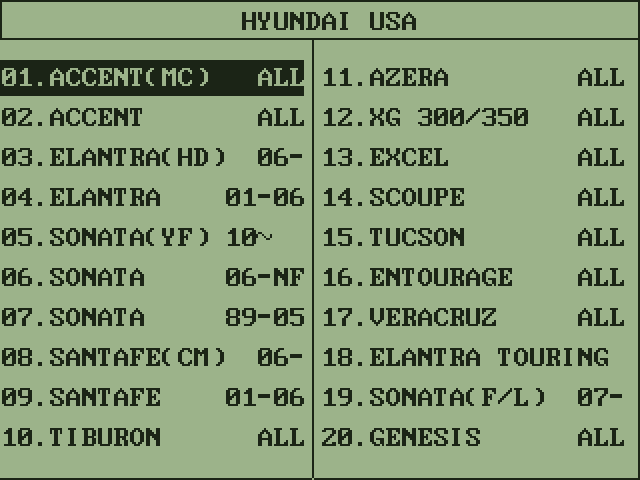
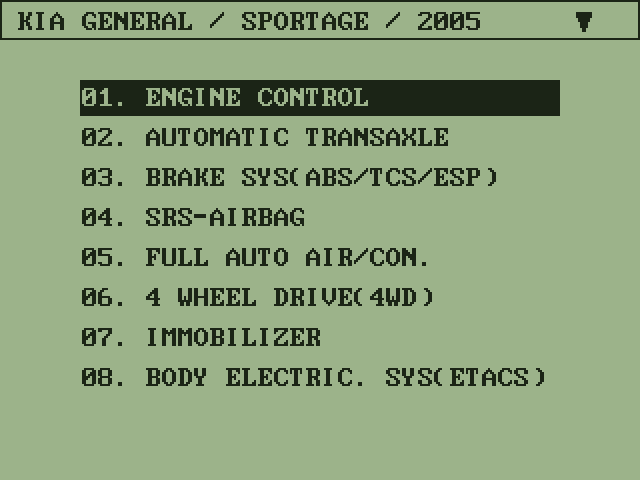
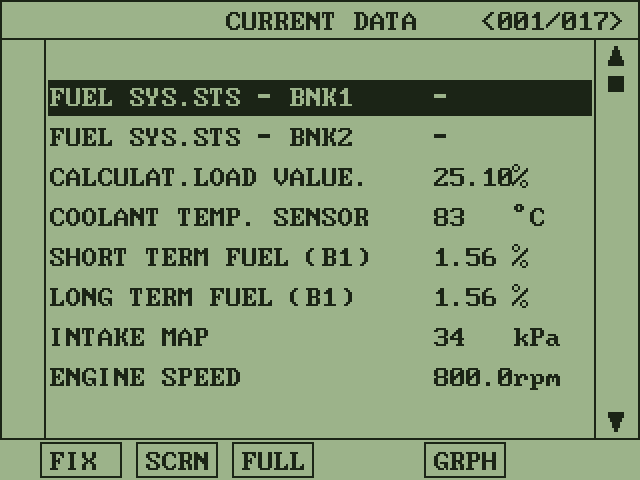
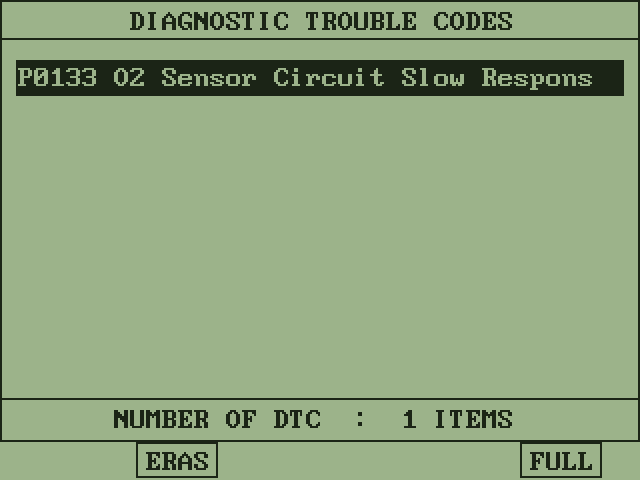
Screens taken from the emulator; values are examples.
What you need
- An Android phone, tablet or car head unit with Android 7.0 or newer
- A vehicle adapter (see below)
- A car with an OBD-II socket. Older cars with another diagnostic socket need a matching adapter cable.
- An internet connection once, to download the ROM pack. Diagnosis itself works offline.
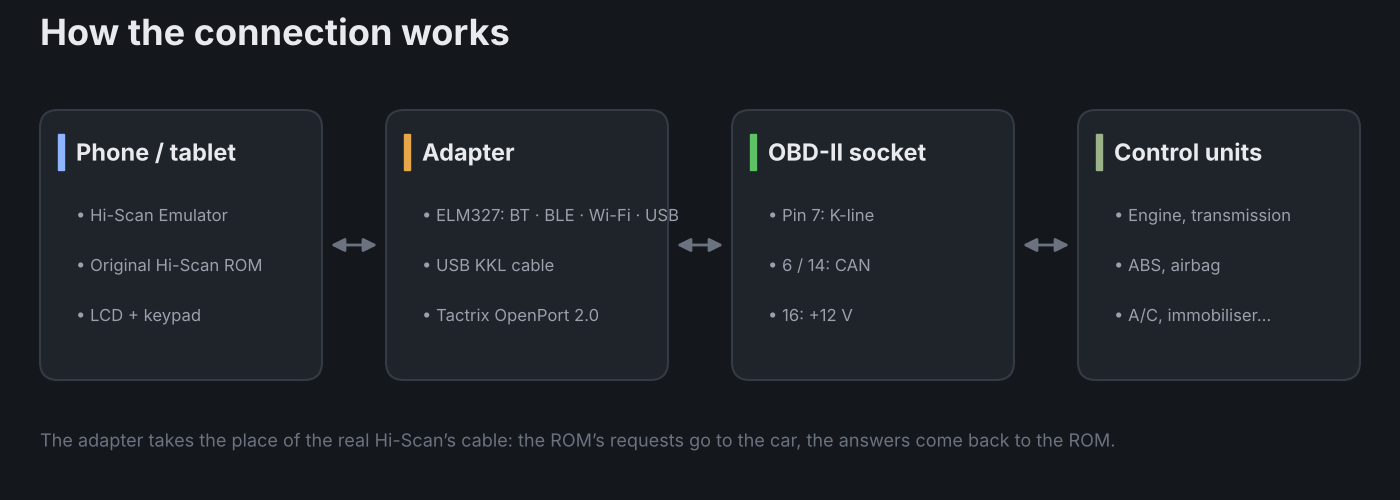
ELM327
Bluetooth (classic and BLE), Wi-Fi or USB. The most common and cheapest choice. K-line (ISO 9141 / KWP2000) and CAN.
USB KKL cable
FTDI-based K-line cable on the phone’s USB OTG. For older K-line cars.
Tactrix OpenPort 2.0
USB via OTG. The device does the inits itself; the steadiest connection, above all on CAN.
With ELM327 adapters that offer both classic Bluetooth and BLE, choose classic Bluetooth (the paired devices list); it copes better with heavy traffic.
ROM packs and install rights
Each ROM pack is the Hi-Scan software for a group of makes. Packs are downloaded from the MSC server on the app’s ROMs page. There are 27 packs at the moment:
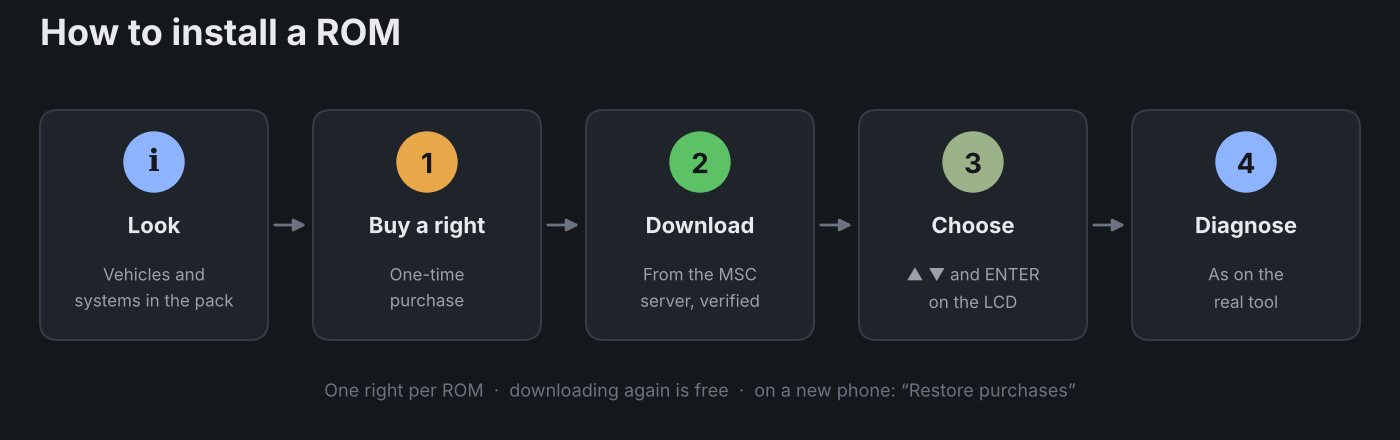
- Every ROM uses one install right. A right is a one-time purchase; there is no subscription.
- Before buying, tap ⓘ next to a ROM to see which vehicles and systems the pack covers.
- Downloading a ROM that already has a right again later is free.
- On a new phone, tap Restore purchases with the same Google account and your rights come back.
- The vehicle connection comes with the ROM at no extra charge. Current prices are shown in the app.
Getting started
- Install the app from Google Play.
- Choose your adapter under Menu → Settings → Vehicle connection. Pair a Bluetooth adapter in the phone’s Bluetooth settings first; the app lists paired adapters itself. For BLE adapters use Scan BLE. Wi-Fi adapters are usually at 192.168.0.10:35000. Plug USB adapters in through OTG and allow access.
- On Menu → ROMs, find the pack for your car, buy a right with Buy 1 install right and tap the download button.
- The LCD on the main screen lists your ROMs: pick one with ▲ ▼ and press ENTER.
- Switch the ignition on. The ROM’s start menu is skipped and the vehicle diagnosis list appears (can be turned off in Settings). Choose make, model and system and work as on the real tool.
Device screen and keys
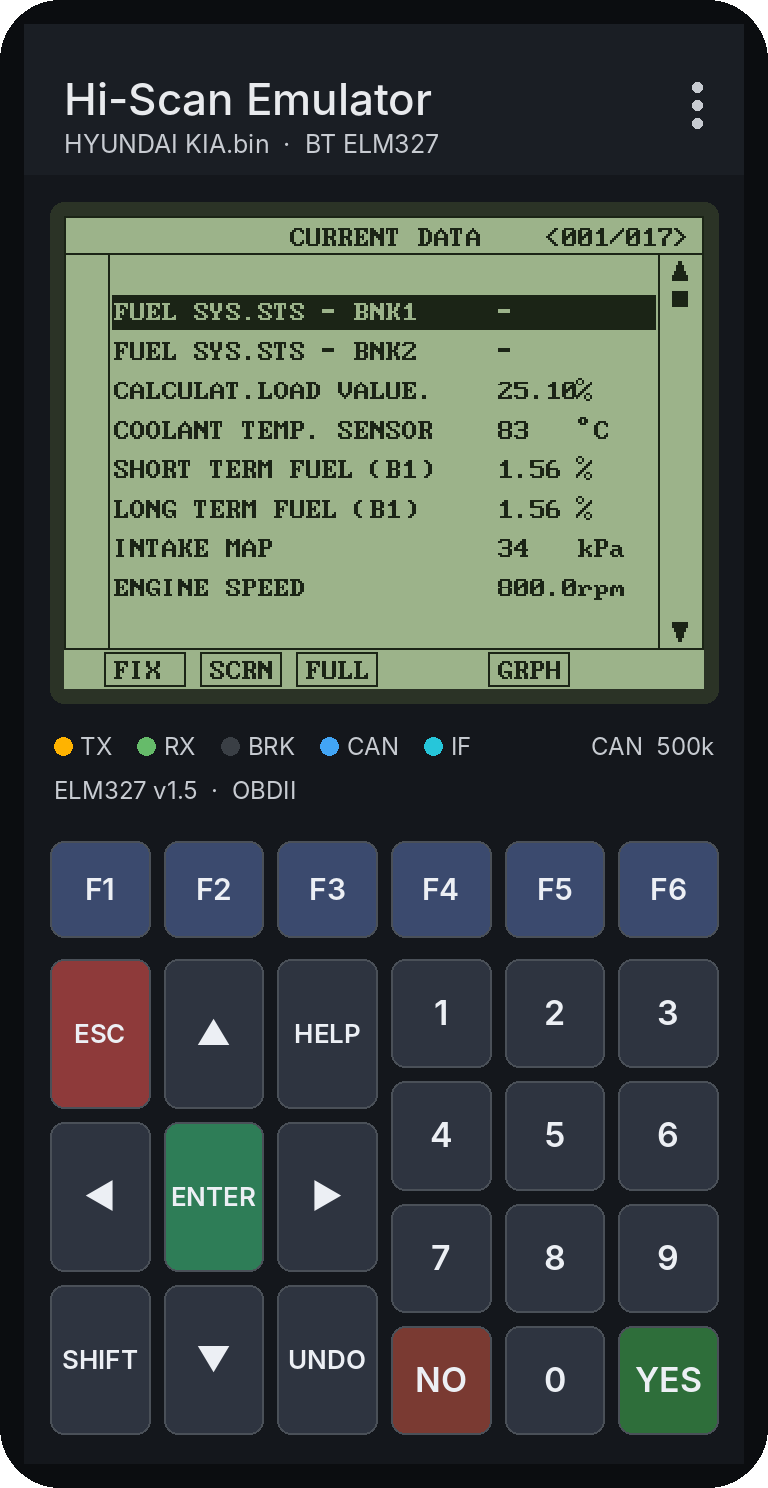
At the top is the tool’s 320×240 LCD, below it the keypad of the real device. The keys do what they do on the tool:
- F1–F6: the functions labelled at the bottom of the screen (e.g. FIX, SCRN, FULL, GRPH)
- ▲ ▼ ◀ ▶ and ENTER: move and select in menus; ESC: back one level
- YES / NO: answer the tool’s questions; 0–9: pick an item by its number
- HELP, SHIFT, UNDO: the ROM’s own help and second-function keys
The line below the LCD shows the link: TX / RX traffic, CAN CAN line in use, IF adapter connected; on the right the line and speed in use. A yellow hint appears when the ignition has to be switched on.
Tips
- Demo mode: choose Demo as the connection in Settings to explore the menus without a car.
- Fast K-line: speeds up live data on K-line cars; turn it off in Settings if values go missing.
- Share log: for connection problems, send us the traffic log with Menu → Share log; it is the quickest way to a fix.
- Save / load state: keep the tool’s current state and carry on later where you left off.
- LCD colours: choose a green, white or blue screen in Settings.
K-line pin notice
On some cars the real Hi-Scan talks to the ABS, airbag or transmission unit through another pin of the socket (such as 8, 9, 12 or 13) instead of pin 7. OBD adapters only have the K-line on pin 7.
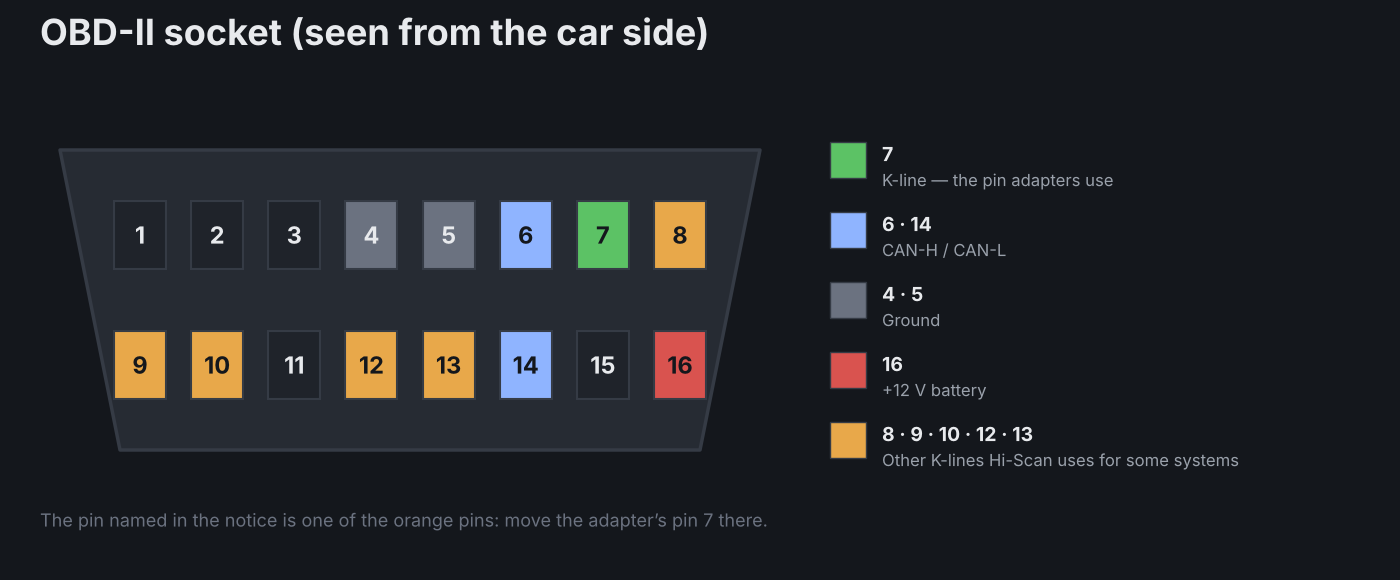
When a unit does not answer, the app shows which pin the ROM was using. Move the adapter’s pin 7 to that pin of the car’s socket (adapter cable or pin swap) and try again. If the ROM tried several pins, all of them are listed.
Frequently asked questions
I cannot connect to my Bluetooth adapter.
Pair the adapter in the phone’s Bluetooth settings first, allow the “Nearby devices” permission and switch the ignition on. The app picks the paired adapter itself. If the adapter offers both classic Bluetooth and BLE, use the classic connection.
The app says “The ECU did not answer”.
This system most likely talks over a pin other than 7. Move the adapter’s pin 7 to the pin named in the notice. If the pin is 7 already, check that the ignition is on and that you chose the right model and system.
I reinstalled the app. Where are my rights?
Tap Restore purchases on the ROMs page. With the same Google account your rights come back, and ROMs with a right download again for free.
Do I get the right back if I delete a ROM?
No, the right stays with that ROM for good. You can download the ROM again for free at any time.
In the CARB OBD-II menu of the HYUNDAI KIA pack the engine speed is far too high.
This comes from that ROM’s generic OBD table (engine speed and air mass). Choose your car from the Hyundai or Kia menu and the values are right.
Do I need the internet?
Only to download ROMs and to open the detail pages. Vehicle diagnosis works completely offline.
Important
Carry out diagnosis and service work following the vehicle maker’s instructions and at your own risk. Do not use the app while driving. Hi-Scan, Carman Scan and the vehicle makes are trademarks of their owners; MSC Electronics is not affiliated with them.